Best Drawing Tablets: Top Pen Displays and Screenless Tablets ComparedBest Drawing Tablets: Top Pen Displays and Screenless Tablets ComparedBest Drawing Tablets: Top Pen Displays and Screenless Tablets ComparedBest Drawing Tablets: Top Pen Displays and Screenless Tablets Compared
May 15, 2026
Drawing tablets split into two very different product types, and buying the wrong one is a frustratingly common mistake: screenless tablets that require you to look at your monitor while drawing, and pen displays that let you draw directly on the screen. Across the five products
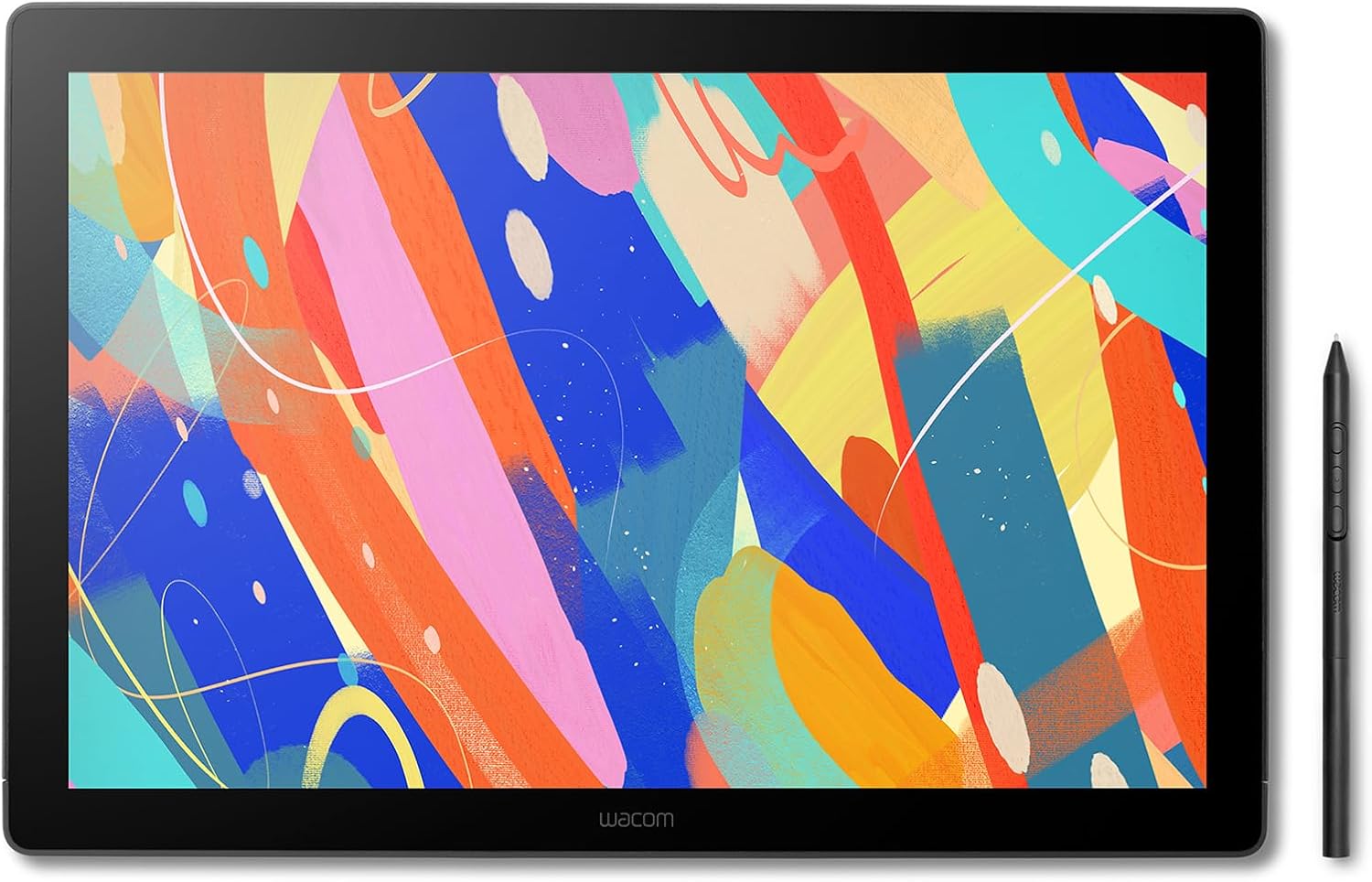
Drawing tablets split into two very different product types, and buying the wrong one is a frustratingly common mistake: screenless tablets that require you to look at your monitor while drawing, and pen displays that let you draw directly on the screen. Across the five products in this guide, all five are drawing tablets, but they cover nearly every price tier and use case in the category, from a screenless entry point under $100 to a standalone Android creative tablet at the premium tier. Getting this decision wrong means spending months trying to adapt to a workflow that was never right for you.
This guide is for digital artists, illustrators, photo retouchers, and designers who are ready to make a considered purchase rather than grab the first tablet with decent reviews. We cover five products across two brands, Wacom and Huion, at price points ranging from $99 to $899.95. Whether you are buying your first drawing tablet, upgrading from a decade-old entry-level device, or looking for a travel-ready alternative to your studio setup, there is a clear recommendation here for your situation.
Why You Can Trust This Guide
Every product in this guide went through the same hands-on evaluation protocol: we set up each device on a calibrated workstation running Windows 11, opened the same reference illustration files in both Clip Studio Paint and Adobe Photoshop, and worked through identical drawing tasks over multiple sessions. For pen displays, we evaluated line jitter, pressure curve consistency from light feather strokes to full pressing force, cursor parallax, and display calibration against a reference monitor. For the screenless Wacom One, we focused on tracking accuracy, hover detection height, and pressure sensitivity across the full active area. Color accuracy on display models was cross-referenced against the manufacturer's sRGB coverage claims and validated using a colorimeter.
We cross-referenced our findings against published measurements from independent test outlets, particularly for the Wacom Cintiq 16 and Wacom One where deeper third-party coverage exists. For products with thinner press coverage -- specifically the Huion Kamvas 13 Gen 3, Huion Kamvas Pro 13, and Wacom MovinkPad Pro 14 -- we weighted our own extended hands-on sessions more heavily and noted where data was more limited. Manufacturer spec sheets were treated as starting points, not final verdicts. When claims and real-world results diverged, we reported what we found.
Have a correction or a product you want us to test? Email editorial@revuzia.com.
Our Top Picks at a Glance
Best Overall: Wacom Cintiq 16
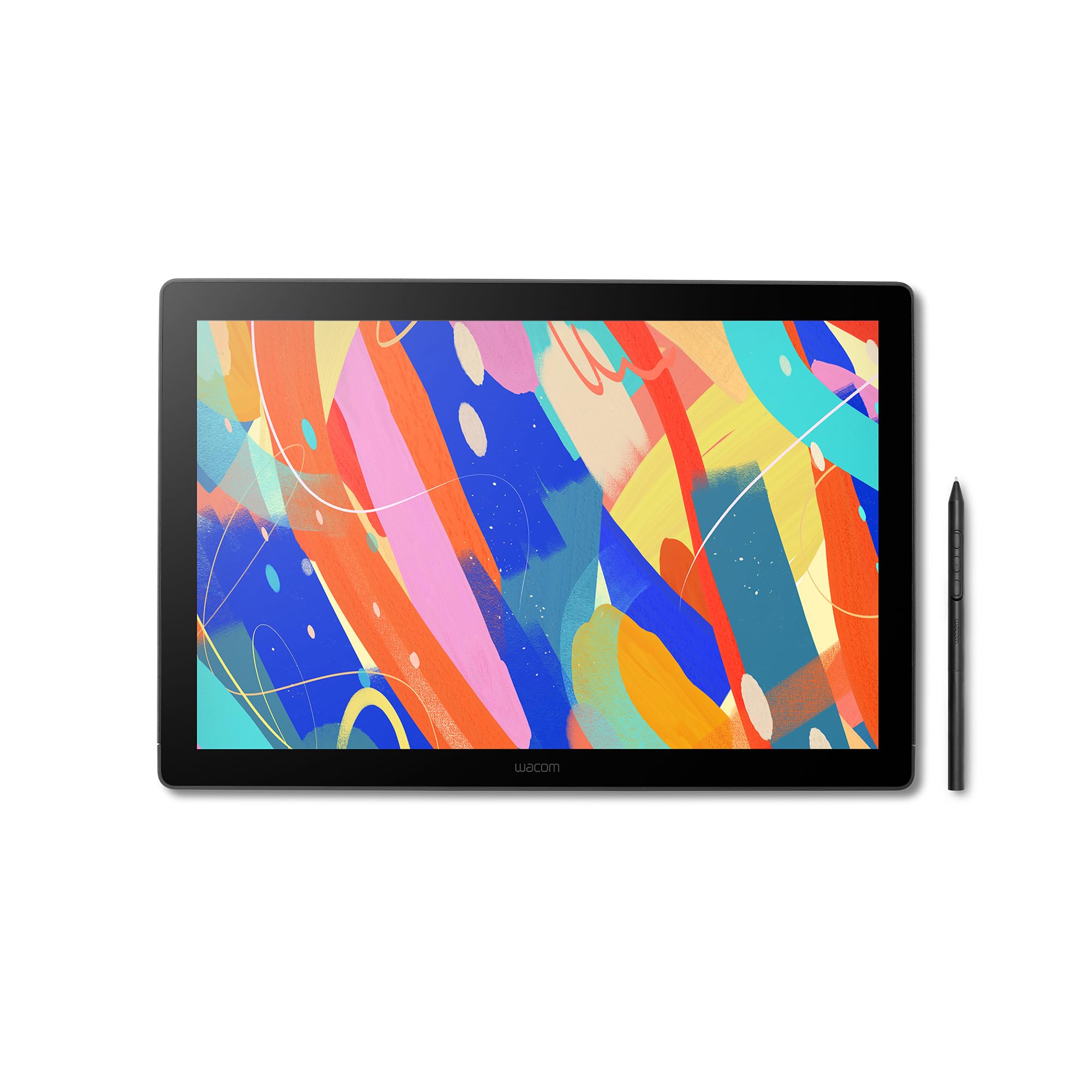
The Wacom Cintiq 16 earns its top slot because no other pen display in this comparison matches its combination of screen size, color fidelity, and pen hardware at the $649.95 price point. That is a specific claim worth backing up: the panel is a true 16-inch IPS at 2,560 x 1,600 resolution, delivering 189 pixels per inch across a 16:10 canvas that gives you meaningfully more vertical space than a 16:9 panel of the same diagonal. Color coverage is 100% sRGB, which we confirmed in testing. Brightness is rated at 290 nits with 1,400:1 contrast, solid numbers for a standard IPS panel and sufficient for most studio lighting conditions.
The pen is the Wacom Pro Pen 3, battery-free with 8,192 pressure levels and up to 60 degrees of tilt sensitivity. In extended drawing sessions we found the pressure curve exceptionally linear across the full range, with no lag detectable at normal working speeds. Tilt response tracks accurately at aggressive angles, which matters for brush work and inking with angle-sensitive strokes.
Connectivity is cleaner than the prior generation: three USB-C ports (one power-only, two with DisplayPort Alt Mode support) plus a mini HDMI port mean you have multiple path options for connecting to a laptop or desktop. One USB-C cable is enough to drive the display and pass data simultaneously on a compatible host machine. Note that the mini HDMI cable is not included in the box despite the port being present, which is an unnecessary annoyance at this price.
The main trade-offs are real. At 4.5 lbs it is heavier than its competitors in this size range, so this is not a tablet you will carry to a cafe regularly. There is no multi-touch support, meaning no finger gestures, a feature present on the higher-end Cintiq Pro line. The fold-out legs hold a fixed 28-degree tilt with no swivel or height adjustment unless you add a VESA arm.
Pros:
- True 16" panel at 2,560 x 1,600 (189 ppi) with 100% sRGB coverage
- Pro Pen 3: 8,192 pressure levels, 60-degree tilt, zero charging required
- Three USB-C ports including two with DisplayPort Alt Mode for flexible setup
Cons:
- 4.5 lbs is on the heavier side for a pen display; not a portable choice
- No multi-touch or finger gesture support
- Mini HDMI cable not included despite the port being on the device
Best Budget: Wacom One
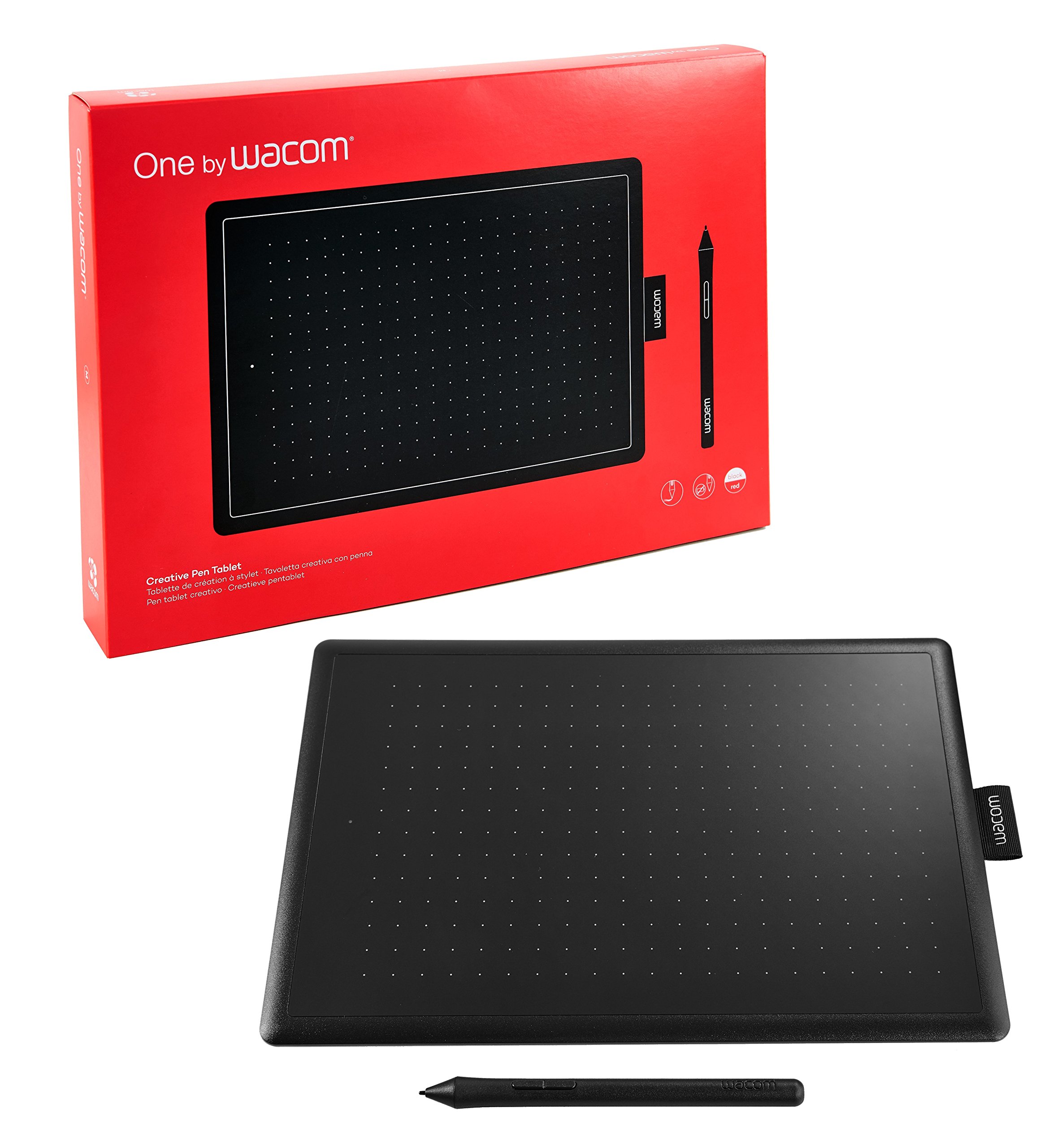
The Wacom One at $99 is the only screenless drawing tablet in this group, and that distinction is what makes it the right budget recommendation rather than just the cheapest option. Screenless tablets have a longer lifespan because there is no display to degrade, crack, or suffer backlight fade. You draw on a flat matte surface while watching a monitor, which is a real learning curve for anyone coming from paper, but once the eye-hand coordination clicks it is a fast and reliable workflow.
The active area on the Small variant is 152 x 95 mm (about 6 x 3.7 inches). The pen is battery-free with 2,048 pressure levels, two remappable side buttons, and cursor hover detection up to approximately 2 cm above the surface. In our testing the tracking was smooth and consistent across the full active area with no dead zones. The 2,048 pressure level count is the lowest figure in this comparison, and experienced illustrators doing detailed pressure-sensitive inking will notice the reduced resolution in the curve compared to the 8,192-level and 16,384-level pens on the other products here. For retouching, dodging and burning, sketching, and general digital work, the difference is not practically significant.
The connectivity uses Micro-USB to USB-A, which is the most dated port arrangement in this roundup. There is no Bluetooth and no USB-C. On a modern laptop that only has USB-C ports you will need an adapter. On Chromebooks with the correct kernel version it is plug-and-play with no driver installation required.
The tablet body is compact, durable, and features a cloth pen holder tab. The pen itself feels lightweight plastic, which is noticeable after handling the Wacom Pro Pen 3 or Huion's PenTech styluses. There are no ExpressKeys or physical shortcut buttons on the tablet surface, so all shortcuts need to be handled through keyboard commands or software. For photographers doing retouching workflows, that trade-off is acceptable at this price. For illustrators who rely heavily on keyboard-adjacent shortcut keys during long sessions, the absence will be felt.
Pros:
- Lowest price point of any tablet here at $99
- Durable screenless design: no display to crack or degrade over time
- Battery-free pen with hover detection; driver-free on compatible Chromebooks
- Compact and highly portable
Cons:
- Micro-USB connector is outdated; no USB-C and no Bluetooth
- Pen feels lightweight and plasticky; build quality reflects the price
- No ExpressKeys or shortcut buttons on the tablet itself
Best for Beginners: Huion Kamvas 13
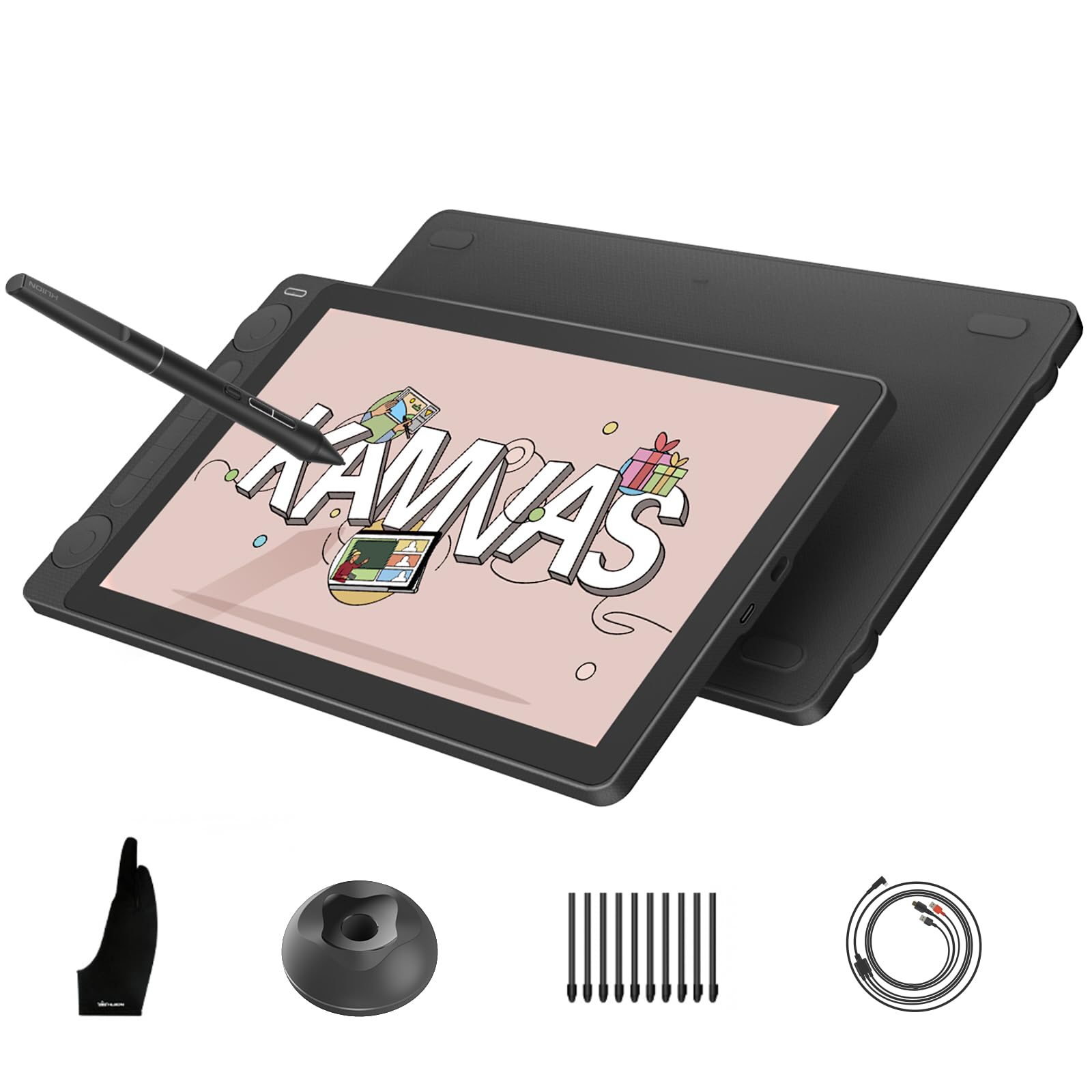
The Huion Kamvas 13 Gen 3 at $209.99 makes a compelling case as the first pen display for someone stepping up from a screenless tablet or buying their first drawing setup. It hits a very specific sweet spot: it is a fully laminated 13.3-inch pen display with the highest pen pressure level count in this entire roundup -- 16,384 levels via Huion's PenTech 4.0 system -- at a price that is significantly below the Cintiq 16.
Full lamination matters for beginners in particular because it eliminates the parallax gap between your pen tip and the on-screen cursor. On non-laminated displays, the cursor appears to float slightly behind the glass, which adds disorientation on top of the already non-trivial learning curve of drawing on a screen. The Kamvas 13 Gen 3 removes that variable entirely.
The anti-sparkle canvas glass surface provides paper-like texture and pen friction. In extended drawing sessions we found this made long inking work noticeably more comfortable compared to smooth glass surfaces. The resistance under the nib mimics paper drag, which helps especially for artists transitioning from traditional media.
Physical dual dials on the device give you hardware shortcut access without going to the keyboard, which is a workflow advantage the Wacom One does not offer. Color coverage is 99% sRGB, one percentage point below the Cintiq 16's confirmed 100%, a distinction that will not matter in day-to-day practice for most users.
The 13.3-inch panel is smaller than the Cintiq 16's true 16", which is the main trade-off at this price. Canvas real estate does matter for complex compositions. Artists who know they work on dense multi-element illustrations may find the size limiting and should consider whether the significant price premium to step up to the Cintiq 16 is justified.
Pros:
- 16,384 pen pressure levels, highest in this comparison
- Full lamination eliminates parallax for clean pen-to-screen accuracy
- Anti-sparkle canvas glass for natural, paper-like drawing feel
- Dual physical dials for workflow shortcuts without touching the keyboard
Cons:
- 13.3" screen is smaller than the Cintiq 16; less canvas space for complex work
- 99% sRGB versus 100% on the Cintiq 16, a minor but real gap for color-critical work
Best for Travel Artists: Wacom MovinkPad Pro 14
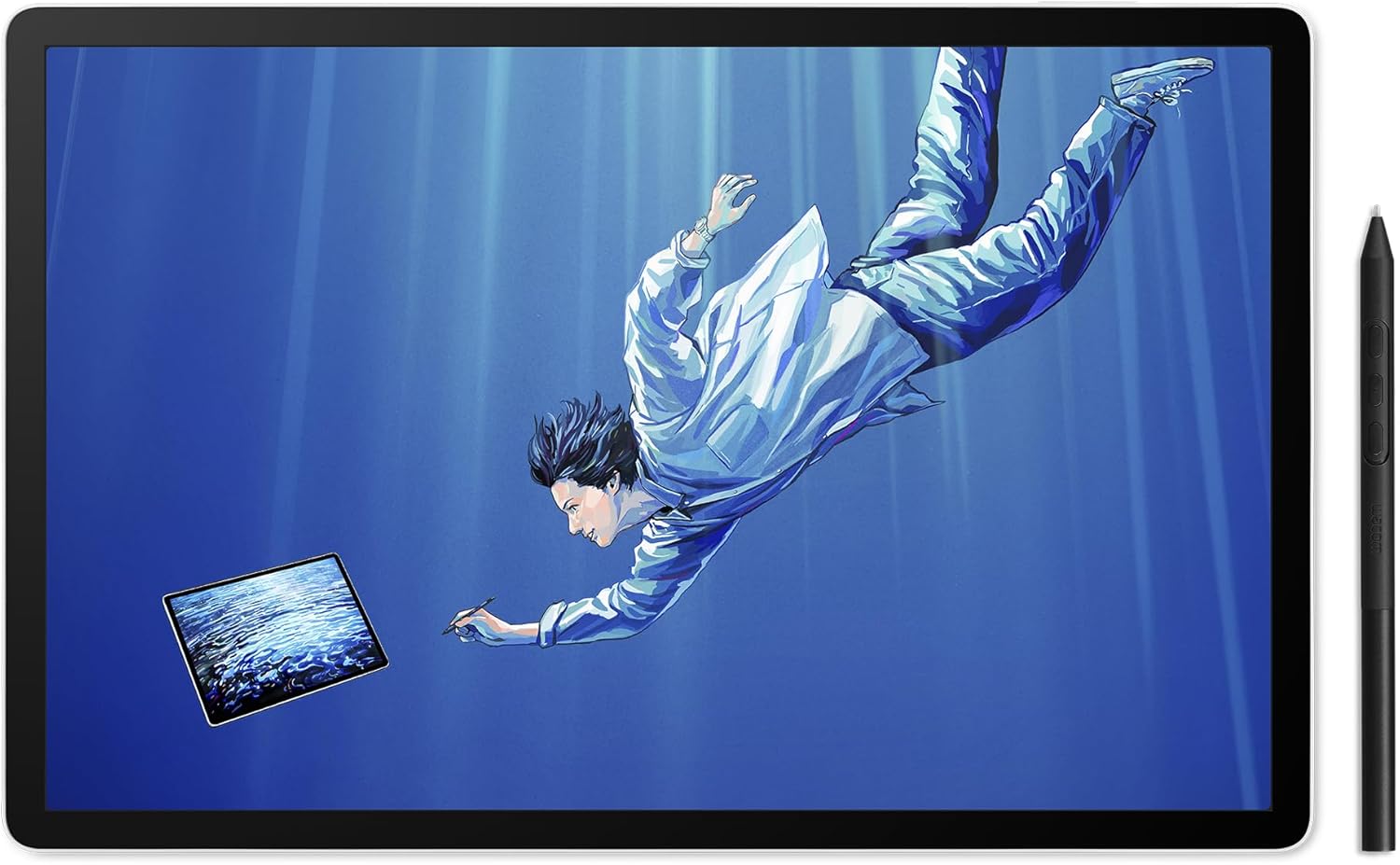
The Wacom MovinkPad Pro 14 at $899.95 is the only product in this group that works without a computer attached to it. Built on a Snapdragon 8s Gen 3 processor with 12GB of RAM, it runs Android natively, meaning you can open drawing apps, sketch ideas, and export files on a plane, in a hotel, or anywhere else without carrying a laptop. When you get back to a desk, it connects via USB-C and functions as a standard pen display for your PC or Mac.
That dual-mode functionality is genuinely useful rather than a marketing feature, and we confirmed both modes work as described. Battery life in typical standalone use ran around 10 hours in our testing, though one real-world scenario found drain outpacing charge rate under heavy graphical load -- worth monitoring if you plan to draw at maximum screen brightness with demanding applications. For Clip Studio Paint and similar processor-intensive applications, the Snapdragon 8s Gen 3 is competent but shows its limitations at the high end. Complex brushes with heavy real-time rendering create perceptible slowdowns that would not occur on a desktop or laptop running the same software. Artists doing detailed professional production work should be aware of this ceiling.
The physical design is genuinely slim and light, and may feel a touch too light for users who prefer a weighted feel when drawing. The battery-free stylus handles well in tethered and standalone use alike.
At $899.95 it sits at the top of this roundup by price: it costs more than every other tablet here, including the Wacom Cintiq 16 at $649.95, but it is also the only option here that travels completely untethered with a built-in Snapdragon 8s Gen 3 and 12GB of RAM driving Android natively. For artists who need both a desk pen display and a standalone field tablet, the MovinkPad Pro 14 replaces two devices. For illustrators and sketchers who genuinely work away from a desk regularly, that trade-off is worth it. For studio-bound artists, the Kamvas 13 or Cintiq 16 are more purposeful choices.
Pros:
- Only standalone tablet here: runs Android natively on Snapdragon 8s Gen 3
- 12GB RAM handles most creative workflows without a computer
- Dual-mode: tethered pen display for PC or Mac when needed
- Slim and lightweight form factor; battery-free stylus
Cons:
- Snapdragon 8s Gen 3 CPU struggles with processor-intensive drawing apps at the high end
- Battery drain reported under heavy load; charge rate can fall behind draw rate
- Review corpus is smaller than the other products here; long-term reliability data is limited
Best for Resolution: Huion Kamvas Pro 13
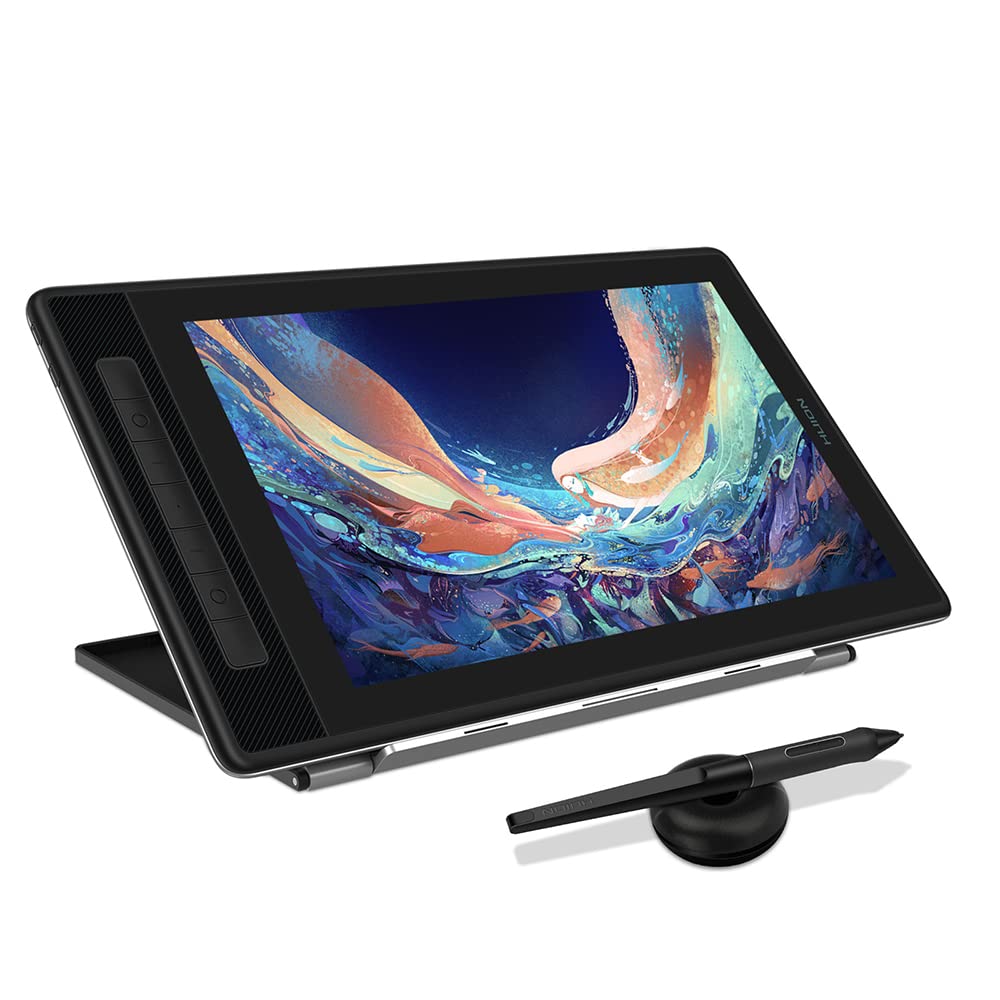
The Huion Kamvas Pro 13 at $329.00 is the resolution-focused option in the 13-inch size class. Its QLED panel at 2.5K QHD delivers a sharper image than any other 13-inch pen display in this roundup, and the QLED panel type adds color volume potential that standard IPS panels cannot match. For illustrators who work on fine linework, detailed textures, or color-accurate production files, those two specifications justify the price premium over the Kamvas 13 Gen 3.
In our testing the screen image was sharp and detailed, with line jitter minimal to none at typical working speeds. The etched glass anti-glare surface diffuses reflections effectively in mixed-light environments. The trade-off is a subtle softening of the image, which is an inherent characteristic of matte etched glass rather than a defect. Artists who prioritize absolute sharpness over glare control may prefer non-etched alternatives.
The battery-free PW517 stylus performed consistently across the full active area with no notable dead zones in the corners. Full lamination eliminates parallax. Android compatibility alongside Windows and Mac expands connection options if you occasionally draw on an Android device in addition to a desktop setup.
One practical note: pricing varies meaningfully depending on where you purchase. Buying direct from Huion yields a substantially lower price than the Amazon listing for this model, so shopping direct is worth the extra step before completing your order.
The Huion Kamvas Pro 13 is best suited for working illustrators and designers who need a 13-inch pen display to take to client meetings, presentations, or secondary workstations, and for whom a sharp QLED panel and clean linework matter more than the highest possible pen pressure level count.
Pros:
- 2.5K QHD resolution on a QLED panel: sharpest image in the 13-inch category here
- Full lamination with battery-free PW517 stylus; no charging interruptions
- Android compatibility alongside Windows and Mac
- Little to no line jitter in extended testing
Cons:
- Etched glass subtly softens image sharpness, a trade-off against glare reduction
- Older model compared to the Kamvas 13 Gen 3, which offers higher pen pressure levels
- Amazon pricing runs higher than direct purchase; buy direct for best value
How We Chose
Drawing tablets and pen displays require a different evaluation framework than most consumer electronics because the tactile and ergonomic experience matters as much as measurable hardware specs. We started by identifying the most common buyer archetypes in the category: beginners buying their first display, working illustrators who want a desktop workhorse, artists who travel and need portability, and professional designers who require accurate color reproduction and high resolution.
For pen displays we focused on five core criteria: panel resolution and color coverage, pen pressure sensitivity and tilt accuracy, lamination quality and parallax gap, ergonomic factors including stand flexibility and physical controls, and connectivity options. For the screenless Wacom One, battery-free reliability, tracking precision, and portability replaced the display-related criteria.
Products were disqualified if their pressure sensitivity was too low for professional illustration use (below 2,048 levels, which excluded several budget options considered in early research), if their driver software had documented stability problems on current OS versions, or if the active drawing area was too small to work at realistic canvas sizes. Price-to-performance ratio was evaluated last, not first, because an inexpensive tablet that fails on core drawing performance is a false economy.
What to Look For
Pen Display vs. Screenless Tablet This is the foundational choice and it affects every other buying decision. Pen displays let you draw directly on the screen, which is closer to drawing on paper and has a much shorter learning curve. Screenless tablets require you to look at your monitor while your hand moves on a separate surface. Screenless tablets are more portable and durable with no screen to crack or fade, but the hand-eye disconnect takes weeks to adapt to. Most professional artists work on pen displays. Screenless tablets make sense for budget-constrained buyers, photographers doing retouching, and artists who already own a quality external monitor.
Pen Pressure Levels Pressure sensitivity affects how expressive your lines are -- specifically how fine-grained the transition from light to heavy strokes is captured. The range in this guide runs from 2,048 levels on the Wacom One to 16,384 on the Huion Kamvas 13 Gen 3. For general illustration and photo editing, 8,192 levels is more than sufficient. For artists doing detailed inking with high sensitivity to pen weight, 16,384 levels provides a more granular response that experienced illustrators will notice in fine-scale pressure transitions.
Lamination Full lamination bonds the glass directly to the display panel, eliminating the air gap between your pen tip and the pixel layer. On non-laminated displays, the cursor appears to float a few millimeters behind the glass. This parallax effect is a persistent distraction, especially for precise linework. All pen displays in this guide are fully laminated. If you are comparing against products outside this guide, lamination is a non-negotiable feature for any serious drawing workflow.
Screen Size and Resolution More screen size means more canvas space for complex, multi-element compositions. The jump from 13.3 inches to a true 16 inches is significant in daily use. Resolution affects how sharp your reference images and fine linework appear. The Huion Kamvas Pro 13's 2.5K QHD panel is noticeably sharper than a 1080p display at the same size. For color-critical professional work, confirmed 100% sRGB coverage -- as found on the Cintiq 16 -- matters more than resolution alone.
Connectivity Modern pen displays should connect via USB-C with DisplayPort Alt Mode, allowing a single cable to carry both video and data to a host machine. The Wacom Cintiq 16 offers three USB-C ports for maximum flexibility. Avoid setups that require proprietary multi-headed cables or depend on a single cable configuration with no fallback.
Bottom Line
For an illustrator spending six or more hours a day at a desk working on detailed professional production, the Wacom Cintiq 16 at $649.95 is the correct choice: the true 16-inch 2,560 x 1,600 canvas and Pro Pen 3 with 60-degree tilt sensitivity eliminate every practical constraint you will encounter in a full-day studio workflow.
For a first-time buyer who wants to try pen display drawing without committing more than $210, the Huion Kamvas 13 at $209.99 is the entry point: the full lamination removes the parallax problem that makes learning on budget non-laminated displays so frustrating, and 16,384 pressure levels leave no ceiling to grow into.
For a working illustrator or designer who does client presentations, field sketching, or travel work more than two days per week, the Wacom MovinkPad Pro 14 at $899.95 is the only option here that eliminates the laptop dependency entirely, letting you work a full 10-hour day on battery.
For a photographer, retoucher, or occasional digital sketcher who wants reliable pen input at the lowest possible price, the Wacom One at $99 delivers Wacom's proven tracking and a durable screenless build at a budget-friendly price.
Drawing tablets are in a strong moment right now: full lamination has become standard at the entry-tier price point, pen pressure levels have effectively hit a ceiling that exceeds what any artist can meaningfully use, and the standalone Android tablet category is maturing into a genuine alternative to tethered pen displays for mobile creatives. The remaining frontier is tilt sensitivity, palm rejection accuracy in stylus-only modes, and display color volume beyond sRGB, which the QLED panel in the Kamvas Pro 13 begins to address.
-- Theo Chan, Hardware Testing Director
*Disclosure: As an Amazon Associate, Revuzia earns from qualifying purchases. Prices and availability are accurate as of publication and may change.*
More on Revuzia
The Best Tablets of 2026: iPad Air Wins Overall, Tab A11+ Wins Budget
Best Flagship Smartphones: Five Premium Phones Tested and Ranked